...
| Sommaire | ||||
|---|---|---|---|---|
|
Modifications Client
Modifications à prendre en compte dans les fichiers environment*.ts
...
| Bloc de code | ||||
|---|---|---|---|---|
| ||||
enabledModules: [ AppUpdateModule, AuthModule, ... ] |
Personnaliser l'affichage de la widget
...
Calendar
Il est désormais possible de choisir entre 2 modes d'affichage pour la widget Schedule Calendar en page d'accueil
Vue 'slider' |
Vue 'list' |
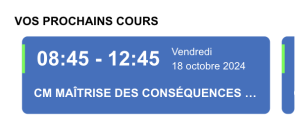
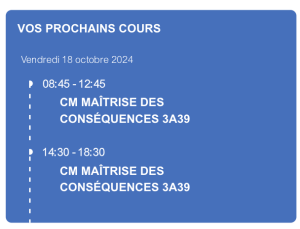
Pour prendre en compte cette nouvelle fonctionnalité, il est nécessaire d'ajouter la variable de configuration display au module ScheduleModuleCalendarModule :
| Bloc de code | ||||||
|---|---|---|---|---|---|---|
| ||||||
ScheduleModuleCalendarModule.forRoot({ nextEventsWidget: { numberOfEventsLimit: 2, numberOfDaysLimit: 73, display: 'slider|list', }, previousWeeksInCache: 1, nextWeeksInCache: 2, managerRoles: ['schedule-manager', 'multi-admin'] }), |
Modifications à prendre en compte dans le fichier angular.json
Vérification des mises à jour du client
Pour activer le module de vérification de la mise à jour du client, il est nécessaire d'ajouter sa configuration dans le fichier angular.json,
), |
Personnaliser l'affichage de la widget Schedule
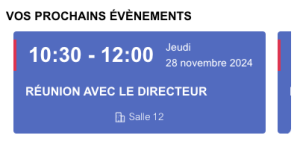
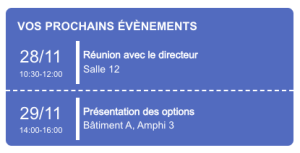
Il est désormais possible de choisir entre 2 modes d'affichage pour la widget Schedule en page d'accueil
Vue 'slider' |
Vue 'list' |
Pour prendre en compte cette nouvelle fonctionnalité, il est nécessaire d'ajouter la variable de configuration display au module ScheduleModule :
| Bloc de code | ||||||
|---|---|---|---|---|---|---|
| ||||||
| Bloc de code | ||||||
| ||||||
ScheduleModule.forRoot({ }, "app-update"nextEventsWidget: { "projectType"numberOfEventsLimit: "library"2, "root"numberOfDaysLimit: "projects/app-update"7, "sourceRoot": "projects/app-update/src",display: 'slider|list' }, "prefix"previousWeeksInCache: "lib"1, "architect"nextWeeksInCache: {2, managerRoles: ['schedule-manager', 'multi-admin'] }), |
Modifications à prendre en compte dans le fichier angular.json
Vérification des mises à jour du client
Pour activer le module de vérification de la mise à jour du client, il est nécessaire d'ajouter sa configuration dans le fichier angular.json,
| Bloc de code | ||||
|---|---|---|---|---|
| ||||
}, "app-update "build": { "builder": "@angular-devkit/build-angular:ng-packagr", "options": { "projectType": "library", "projectroot": "projects/app-update/ng-package.json", }, "sourceRoot": "projects/app-update/src", "prefix": "lib", "configurationsarchitect": { "productionbuild": { "tsConfigbuilder": "projects/app-update/tsconfig.lib.prod.json" }@angular-devkit/build-angular:ng-packagr", "developmentoptions": { "tsConfigproject": "projects/app-update/tsconfigng-package.lib.json" }, }, "configurations": { "defaultConfigurationproduction": "production"{ }, "testtsConfig": {"projects/app-update/tsconfig.lib.prod.json" "builder": "@angular-devkit/build-angular:karma" }, "optionsdevelopment": { "maintsConfig": "projects/app-update/src/test.ts",tsconfig.lib.json" "tsConfig": "projects/app-update/tsconfig.spec.json",} "karmaConfig": "projects/app-update/karma.conf.js" }, }"defaultConfiguration": "production" }, "linttest": { "builder": "@angular-eslintdevkit/builderbuild-angular:lintkarma", "options": { "lintFilePatternsmain": ["projects/app-update/src/test.ts", "tsConfig": "projects/auth/**/*.tsapp-update/tsconfig.spec.json", "karmaConfig": "projects/auth/**/*.htmlapp-update/karma.conf.js" ]} }, }"lint": { } }, |
Modifications à prendre en compte dans les fichiers de theming
Prise en compte des images SVG dans les Widgets
    "builder": "@angular-eslint/builder:lint",
        "options": {
          "lintFilePatterns": [
            "projects/auth/**/*.ts",
            "projects/auth/**/*.html"
          ]
        }
      }
    }
}, |
Modifications à prendre en compte dans les fichiers de theming
Prise en compte des images SVG dans les Widgets
Il est désormais possible d'ajouter une image au format SVG Il est désormais possible d'ajouter une image au format SVG à un widget au travers de l'interface de saisie de Directus.
Pour que celle-ci s'affiche correctement, il est nécessaire de modifier le CSS
Dans le fichier widget-external-feature.component.scss, ajoutez le bloc suivant :
| Bloc de code | ||||||
|---|---|---|---|---|---|---|
| ||||||
app-custom-icon {
  vertical-align: text-top;
} |
Dans le fichier widget-internal-feature.component.scss, remplacez le bloc .feature-title comme suit :
de Directus.
Pour que celle-ci s'affiche correctement, il est nécessaire de modifier le CSS
Dans le fichier widget-external-feature.component.scss, ajoutez le bloc suivant :
| Bloc de code | ||||||
|---|---|---|---|---|---|---|
| ||||||
app-custom-icon {
  vertical-align: text-top;
} |
Dans le fichier widget-internal-feature.component.scss, remplacez le bloc .feature-title comme suit :
| Bloc de code | ||||||
|---|---|---|---|---|---|---|
| ||||||
.feature-title {
  padding: 1rem 1rem 0.2rem;

  app-custom-icon {
    vertical-align: text-top;
  }
} |
Personnaliser l'affichage de la widget Calendar
Le fichier dev/user-frontend-ionic/src/theme/app-theme-dist/styles/calendar/calendar.component.scss a été revu complètement pour gérer 2 blocs .calendar-list-style ou .calendar-slider-style pour pouvoir prendre en compte les 2 types d'affichage possible pour la widget
| Bloc de code | ||||||
|---|---|---|---|---|---|---|
| ||||||
ndar-list-style {

  display: block;

  .ion-padding {
    padding-top: 5px !important;
  }

  .events-container {
    padding: 0;
  }

  .event {
    align-items: center;
    padding: 0.5rem 0;
  }

  hr {
    border-top: 2px dashed var(--ion-color-primary-contrast);
    margin: 0;
  }

  .event-part ion-text {
    display: block
  }

  .event-part-date {
    flex-grow: 1;
    text-align: center;
    border-right: 5px solid var(--ion-color-primary-contrast);
    margin-right: 5px;
  }

  .event-part-info {
    flex-grow: 3;
  }

  .light-font-color{
    color: var(--app-font-color-for-dark-background-from-cms) !important;

    hr {
      border-top: 2px dashed var(--app-font-color-for-dark-background-from-cms);
      margin: 0;
    }

    .event-part-date {
      border-right: 5px solid var(--app-font-color-for-dark-background-from-cms);
    }
  }

  .dark-font-color{
    color: var(--app-font-color-for-light-background-from-cms) !important;

    hr {
      border-top: 2px dashed var(--app-font-color-for-light-background-from-cms);
    }

    .event-part-date {
      border-right: 5px solid var(--app-font-color-for-light-background-from-cms);
    }
  }

}

.calendar-slider-style {
  display: block;

  ion-card {
    scroll-snap-align: center;
  }

  ion-card.slider-theme-color {
    box-shadow: var(--app-border-no-box-shadow);
    //border: var(--app-border-width-7) solid var(--app-border-color-primary);
    background-color: var(--ion-color-tertiary);
  }

  ion-card-content {
    padding: 0.7rem 0;
    height: 100%;
    display: flex;
    flex-direction: column;
  }

  .events-container {
    padding: .5rem 0 0;
    display: grid;
    gap: 1rem;
    grid-auto-flow: column;
    grid-template-columns: 10px;
    grid-auto-columns: 85%;
    overflow-x: auto;
    scrollbar-width: none;
    scroll-snap-type: x mandatory;
    overscroll-behavior-x: contain;

    &::-webkit-scrollbar {
      display: none;
    }

    &::before,
    &::after {
      content: '';
      width: 10px;
    }

    .event-day-hour {
      display: flex;
      flex-direction: row;
      border-left-width: 4px;
      border-left-style: solid;
      align-items: center;
      flex-wrap: nowrap;
      border-color: var(--ion-color-secondary);

      .hour {
        padding-left: 1rem;
        display: block;
      }

      .day {
        padding-left: 1rem;
        display: block;

        ion-text {
          display: block;
        }
      }
    }
  }

  .card-labels {
    margin-right: 0.6rem;
  }

  .card-labels-icons {
    margin-right: 0.3rem;
  }

  .event-label {
    padding: 1rem 1rem 0;
    white-space: nowrap;
    overflow: hidden;
    text-overflow: ellipsis;
  }

  .event-additional {
    display: flex;
    padding: 0.7rem 0.5rem 0;
    justify-content: space-evenly;
    flex-wrap: wrap;
    flex-grow: 2;
    align-items: center;

    ion-row:last-child {
      margin-right: 0;
    }
  }

  .slider-font-color{
    color: var(--app-font-fix-light-color) !important;
  }

  .light-font-color{
    color: var(--app-font-color-for-dark-background-from-cms) !important;
  }

  .dark-font-color{
    color: var(--app-font-color-for-light-background-from-cms) !important;
  }
| ||||||
| Bloc de code | ||||||
| ||||||
.feature-title {
  padding: 1rem 1rem 0.2rem;

  app-custom-icon {
    vertical-align: text-top;
  }
} |
Personnaliser l'affichage de la widget Schedule
...