La liste d'utilisateurs n'est pas rendue car vous ne possédez pas les droits d'accès nécessaires pour afficher les profils utilisateur.
Historique de la page
esup-helpdesk can be used by both local and external users.
| Sommaire |
|---|
local/external users
Local users
Identification
Local users are identified by their unique ID in the Information System, typically the LDAP uid (e.g. paubry).
Authentication
Local users are authenticated:
- for portlet deployments: by the portal.
- for servlet and quick-start deployments: by CAS.
Astuce title Portal authentication Any authentication can be used by the portal (database, LDAP, CAS, ...); the esup-helpdesk knows who is authenticated, but not how. Technically, the connected user's id is passed to the application through JSR-168 preferences.
Profiles
Local users are characterized by their attributes in the Information System: the LDAP directory (see Configuring the LDAP access) and/or the portal (see Configuring portal information access).
External users
Identification
External users are identified by their email address (e.g. alexandre.boisseau@univ-brest.fr).
Authentication
External users are authenticated by the application itself, thanks to a password. The password is generated at the account creation and sent to the users by email. The password can be re-sent to the users at any time later.
| Astuce | ||
|---|---|---|
| ||
For portlet deplyments, the portal runs as guest for external users. |
Profiles
No attribute is avalable for external users (no link to the Information System).
Administrators
The administrators of the application are true users.
...
| Astuce |
|---|
The 'Administration' menu is visible by the administrators only. |
Preferences
All the authenticated users (local or external) can manage their preferences using the 'Preferences' menu. 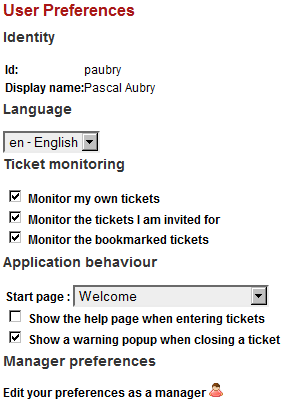
Ticket monitoring allows users to recieve alerts by email when events occur on tickets. By checking the proposed boxes, users receive emails with links that allow them to access the application directly (even when the application is deployed as a portlet in a portal).
The last link ('Edit your preferences as a manager') is show to managers only and allows them to manage their manager preferences: 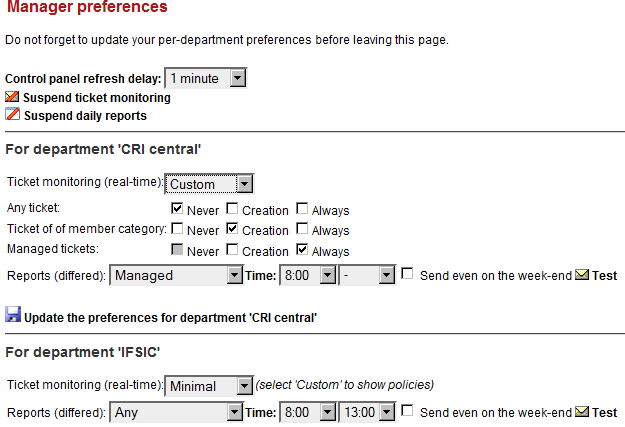
Vue d'ensemble
Gestion des contenus